> For the complete documentation index, see [llms.txt](https://docs.acpt.io/llms.txt). Markdown versions of documentation pages are available by appending `.md` to page URLs; this page is available as [Markdown](https://docs.acpt.io/canvas-ui/using-the-canvas.md).
# Using the Canvas
Step-by-step guide to adding, reordering, and configuring items in the Canvas UI.
## Opening the Canvas
The Canvas UI opens automatically when you edit a meta group, a form, a table (step 2 — Columns), or a dynamic block. There is nothing to configure before using it.
## Adding an item
1. In the **sidebar**, browse or scroll through the available types.
2. Click a type (e.g. **Text field**) to add it at the bottom of the canvas, or **drag** it to a specific position.
3. The new item is selected immediately and its settings panel opens.
Clicking always appends the item to the end of the canvas; dragging lets you drop it at a specific position instead.
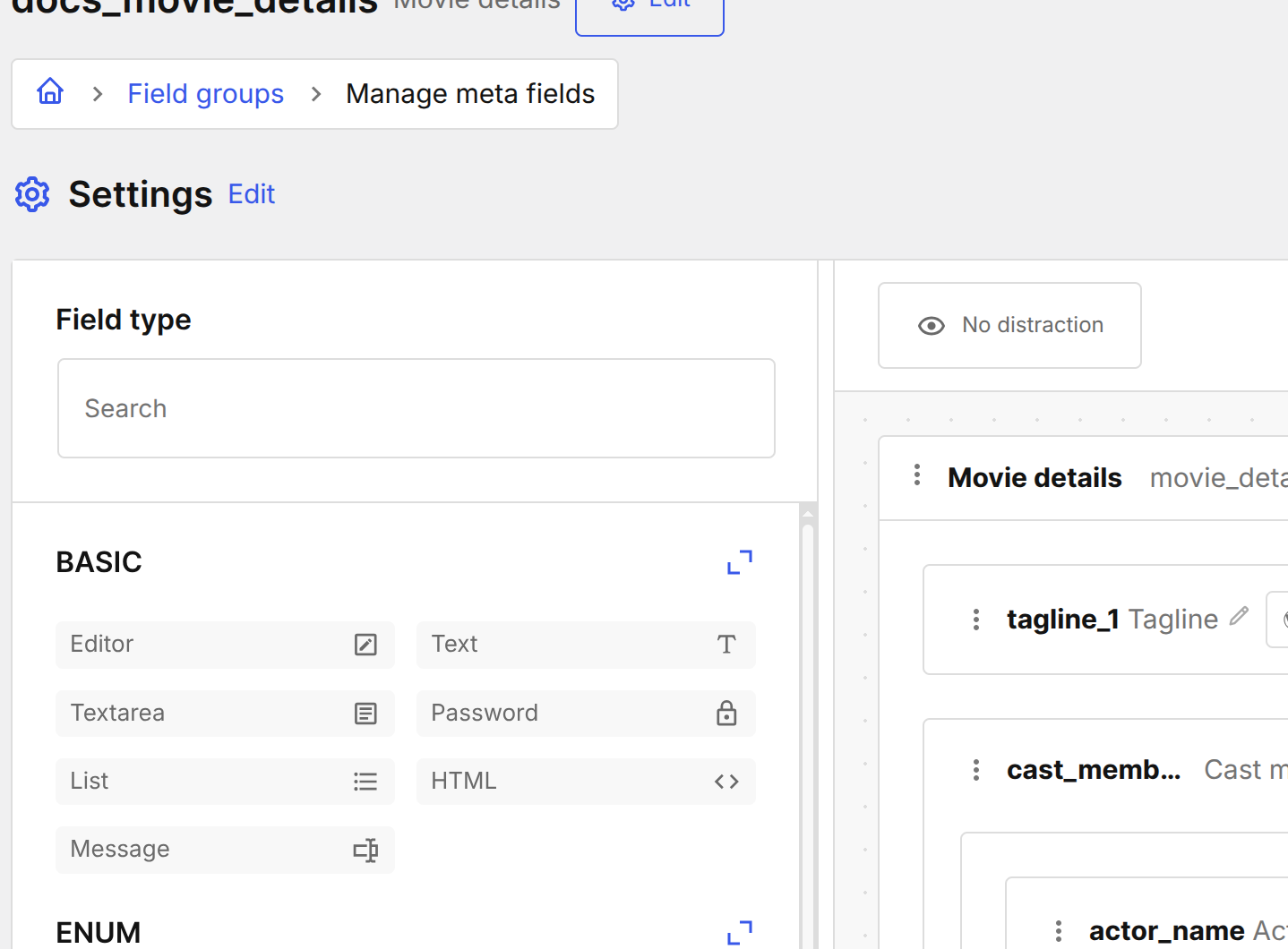
Click a type in the sidebar to add it to the canvas.
## Editing an item
Click any item in the canvas to open its settings in the right-hand panel (or below the item, depending on the context). Edit the settings and they are saved automatically.
## Editing fields inline
Some values shown on a canvas card — for example a field's label — can now be edited directly by clicking into them, without opening the full settings panel. This gives you a faster path for quick renames. Exactly which values are inline-editable depends on the context; see the [form builder](/forms/the-form-builder.md) page for the Forms-specific behavior.
Inline edits and the settings panel stay in sync live: if the panel is open at the same time, changes made inline appear there immediately, and vice versa.
{% hint style="info" %}
Some values are locked from inline editing — and from being re-added to the canvas — when they're bound to an existing meta field, CCT column, or WordPress core field, so that binding can't be broken. See the [form builder](/forms/the-form-builder.md) page for a concrete example.
{% endhint %}
## Reordering items
Grab the **drag handle** (the `⠿` grip icon on the left of each item) and drag it up or down to change its position. The order in the canvas is the order items appear in the admin record form and in front-end output.
## Duplicating an item
Click the **Duplicate** icon in the item's actions bar to create an identical copy immediately below it. The copy gets a new unique name.
## Deleting an item
Click the **Delete** icon in the item's actions bar, then confirm in the modal. Deleting a field/column removes its saved values — this action cannot be undone.
{% hint style="danger" %}
Deleting a column from a CCT table removes the column definition and its data from the database. Make sure you have a backup before deleting columns from tables that contain records.
{% endhint %}
## No-distraction mode
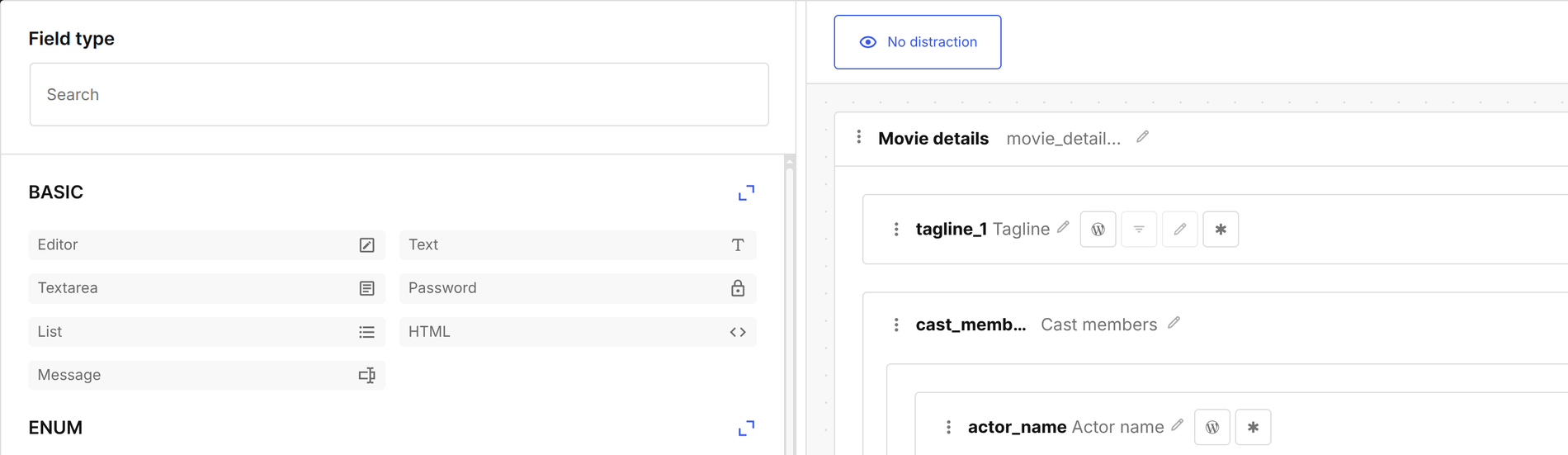
Click the **No-distraction** toggle in the top-right toolbar to hide the WordPress admin sidebar and top bar. This gives you the maximum canvas working area. The preference is remembered per session.
No-distraction mode hides the WordPress chrome for a focused editing experience.
## Resizing the panels
Drag the vertical divider between the sidebar and canvas to resize them. The layout is saved to `localStorage` and restored the next time you open the same entity.
## Choosing the sidebar position
Two icon buttons in the toolbar let you dock the sidebar on the left or right side of the canvas — useful if you prefer the field list closer to a particular side of your screen. The choice is remembered per entity (per meta group, form, table, or block), using the same preference mechanism as no-distraction mode, so switching to a different entity won't carry the setting over.
## Keyboard shortcuts
| Shortcut | Action |
| -------- | ------------------------ |
| `Escape` | Deselect the active item |
## Nestable items (Repeater / Flexible)
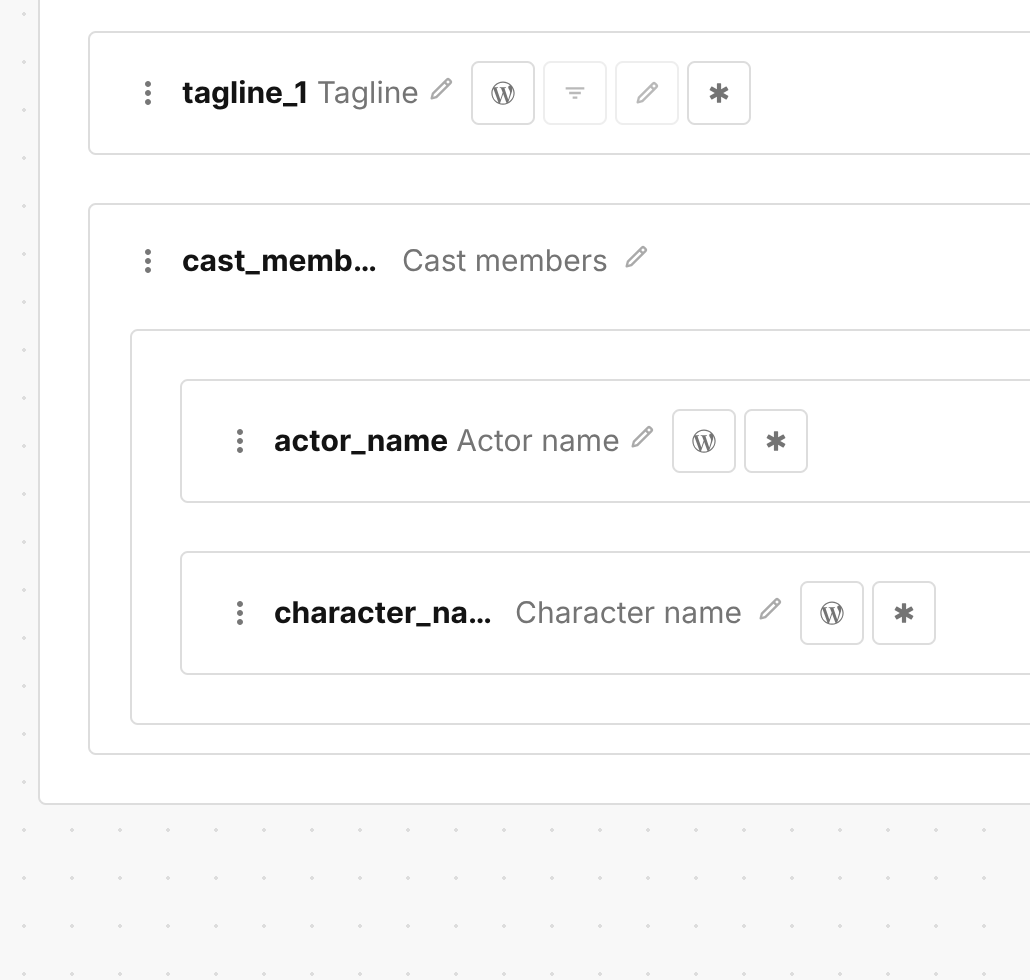
Repeater fields and flexible blocks contain **child items**. Click the repeater/flexible item to expand it, then use the inner **Add child** button to add sub-fields. Child fields support the same drag-and-drop reordering as top-level fields.
A repeater column expanded to show its child columns.
## Saving
Changes in the Canvas UI are staged locally. Click the **Save** button in the page actions bar (top-right) to persist all changes to the database.