> For the complete documentation index, see [llms.txt](https://docs.acpt.io/llms.txt). Markdown versions of documentation pages are available by appending `.md` to page URLs; this page is available as [Markdown](https://docs.acpt.io/integrations/woocommerce/product-data.md).
# Product data
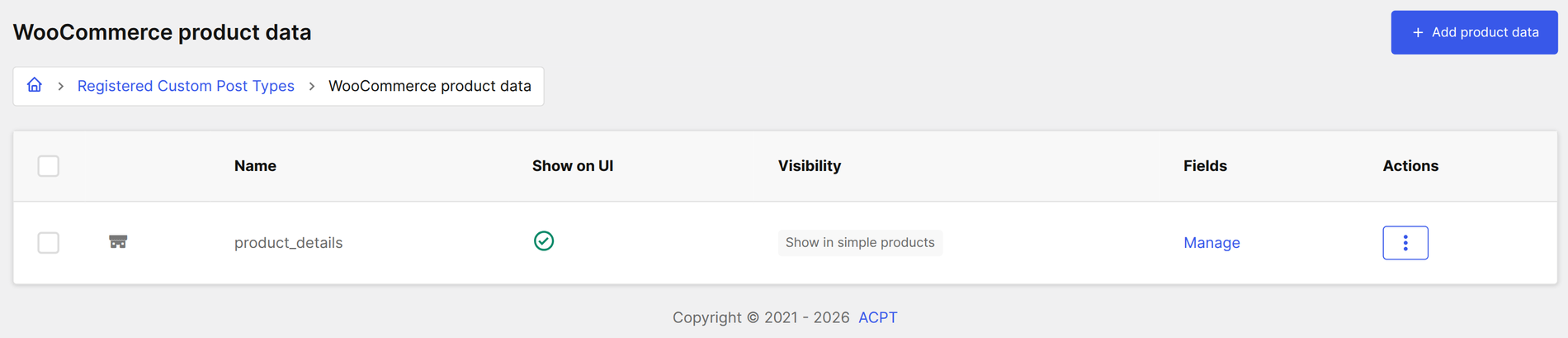
The Product data list will be shown:
### Managing product data
Once you are in the WooCommerce product data dashboard you can run these operations:
* **Create new product data**
* **Update an existing product data**
* **View a registered product data**
* **Delete a registered product data**
#### Create a new product data
Click on the "**Add product data**" button to create a new one:
The creation of new product data is a single-step process.
The form has four fields:
* **Product data name** - max 20 characters allowed
* **Icon** - taken from [this list](https://rawgit.com/woothemes/woocommerce-icons/master/demo.html)
* **Visibility**
* **Show in UI**
#### Update an existing product data
You have two ways to Update a post type:
* By clicking the Edit link in the dashboard
* By clicking the Edit link in the View mode
The update process is identical to the creation one.
#### View a registered product data
By clicking the View link in the dashboard you can view product data.
#### Delete a product data
By clicking the Delete link in the dashboard you can delete product data.
{% hint style="info" %}
**IMPORTANT**: This operation **DOES NOT DELETE anything on the posts WordPress DB table**, but only the ACPT settings.
{% endhint %}
After deleting a product data you will no longer display it in the admin panel, even if the records are still present.
If you try to re-create the same product data you'll see the data.
### Managing product data fields
Locate the Fields column in the Product data dashboard. Click on "**Create**".
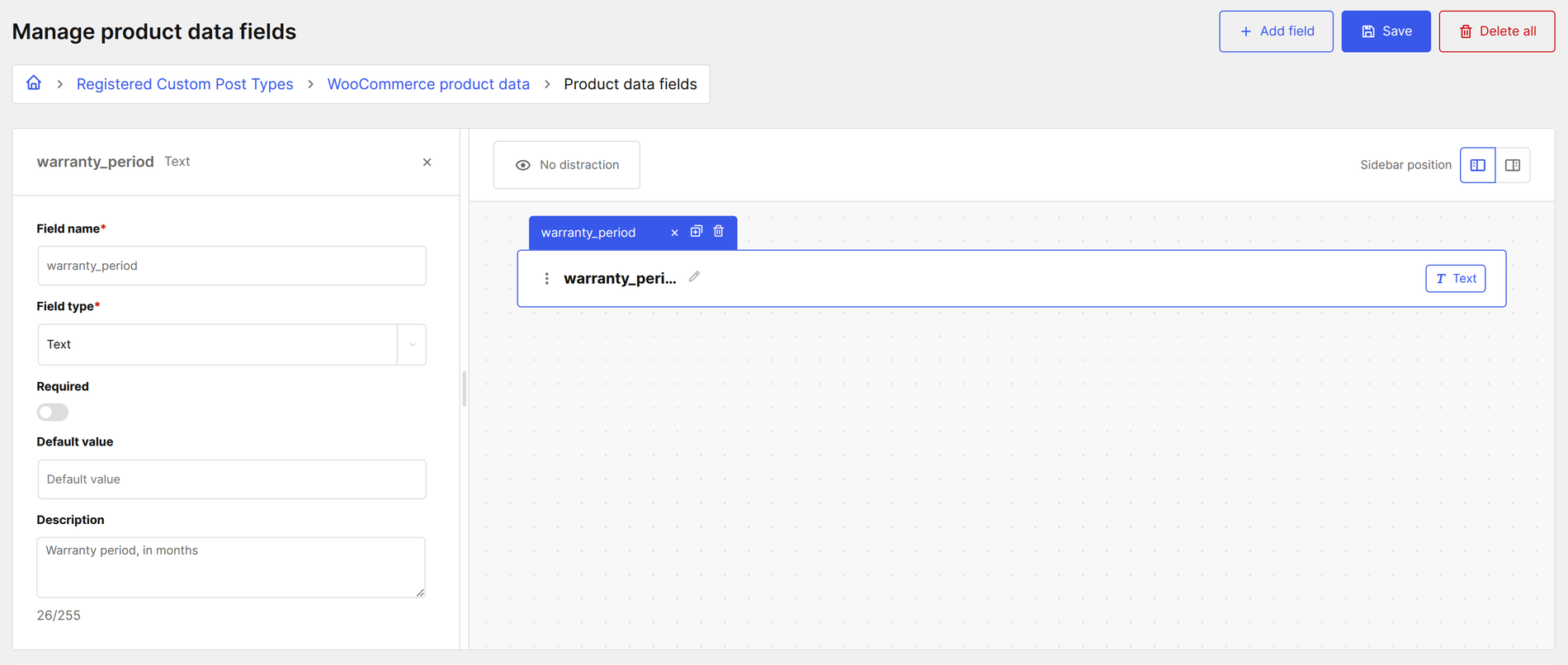
The product data fields manager looks very similar to [the meta fields manager](/meta-fields/the-meta-fields-manager.md).
Click on the "**Add field**" button to create the first field:
The field header shows on the left the field name with a button to mark the field as required, and on the right four icons to handle the allowed actions:
* **Duplicate**
* **Delete**
* **Collapse**
In the main panel there are four fields, from top to bottom:
* **Field name**- type here the name of the field (*required*)
* **Field type** - the field type (*required*)
* **Default value** - the default value (*optional*)
* **Description** - the description tip (*optional*)
#### Field types
The field types manager uses the same Canvas UI as [the meta fields manager](/meta-fields/the-meta-fields-manager.md), so the same field types are available, grouped by category:
* **Basic**: Text, Textarea
* **Enum**: Select, Select (multiple), Toggle, Checkbox, Radio
* **Numeric**: Number, Range
* **Date & time**: Date, DateTime, DateRange, Time
* **Specialized fields**: Url, Phone, Email, Color, Icon
* **Relations**: Post, Post (multiple), Term, Term (multiple), User, User (multiple)
If you select a field type that allows only a list of possible values you will display the Options list panel where you can type the label and the value for every option.